The Bloblings guide
Everything your Blobling can do.
Setup, the panel, what every pet means, notes between threads, the desk for client work, the end-of-day wrap-up and every setting, in plain words. Jump to whatever you need.


























- 1Getting startedInstall, connect, first pet
- 2The panelHeader, cards, chips, footer
- 3What the pets meanEvery state, colour and age
- 4Cards and their menuClick, right-click, subtasks
- 5Notes between threadsClaude and Codex, any direction
- 6TeamsA whole team of threads, in a few clicks
- 7HelpersMore subagents, or fewer
- 8Next upThe shortcut to whoever waited longest
- 9The wrap-upThe moon: before you log off
- 10The deskTimer, clients, rates, reminders, invoices
- 11SettingsEvery option, and its default
- 12The menu barCount, timer and menu
- 13Codex and other agentsPets for every agent
- 14PrivacyEverything stays on your Mac
- 15TroubleshootingWhen something isn't right
Getting started
Bloblings gives every AI coding thread on your Mac a small pet in a drawer at the edge of the screen. The pet works while the thread works, waves when it needs you, and relaxes when it's done. Click a pet to jump straight to its thread.
It's free, it runs only on your Mac, and it never approves anything for you.
- Download Bloblings and drag it to Applications. It needs macOS 15 Sequoia or later.
- Open it. A slim tab appears on the edge of your screen; click it to slide the drawer out.
- The drawer opens on Setup: "Welcome to Bloblings". Click Connect Claude Code. Bloblings adds one small hook to Claude Code's settings, backs up
settings.jsonfirst, and leaves your other hooks exactly as they are. Exactly what changes shows the details. - You'll see "You're connected!". Click Show my pets.
- The first time, a big guide Blobling offers you a tour: the demo team, notes, a Huddle and clicking a pet, then Codex and the terminal. See it again any time: Settings → Guided tour → Show the tour.
- Start a new Claude Code thread, in the Claude desktop app or your terminal. Its pet drops in by parachute.
- Using Codex, Antigravity or another agent too? See Codex and other agents.
 Bloblings2 need you
The panel
The drawer hides behind a slim tab on the edge of your screen. Click the tab to slide it out, and again to put it away. You can set its width and the tab's height in Settings.
The header
- Bloblings (the icon and title): back to the pets from any other view. The title changes to Settings, Wrap-up or Desk to show where you are.
- The cog opens Settings.
- The moon opens the wrap-up: what's left before you log off.
- The stopwatch opens the desk: the timer and time log.
- The huddle of Bloblings opens Teams: start a whole team of threads.
- The pill on the right sums things up: "2 need you" when threads are waiting on you (a new reply counts), otherwise "5 pets out". When the drawer is narrow it shows just the number.
You're in
Under the header, You're in names the thread you're working in now, with a dot in its colour. That thread's card also gets a thin glowing line down its right edge.
The three bands
The panel sorts your threads into up to three bands, so what needs you is always at the top. A band only shows when it has threads.
- Waiting on you: threads that need your OK or input, have a question or a plan, or wrote back. They are full cards, longest wait first. The longest-waiting one has a lamp button: Review in thread, or Read the reply for a new reply.
- Working: busy threads as quiet rows, with how many there are. A thread that has just finished stays here for a while, resting among them: 10 minutes by default (Settings → Panel → Finished threads stay in Working).
- Resting: a dim shelf of small tiles for finished and idle threads. Finished pets take turns at the cinema, the hot tub, the beach and the hammock. Each tile says how long it's been like that ("Done 20m ago", "Idle 3h"), and a small bar shows how big the thread is.
Prefer the single list of cards from before 1.1? Settings → Panel → Layout → Classic brings it back.
A card, top to bottom
A full card, as in Waiting on you, has all of this. Working rows and Resting tiles are smaller and show less of it.
- The project, in capitals and in the pet's colour. A card in a team shows the team's name there instead, in the team's colour (hover it to see the folder). Beside it, with badges beside it: XHIGH, MAX or ULTRA for the effort, and CODEX (or another agent's name) for chats that aren't Claude Code.
- The thread's title.
- What it's doing and for how long, like "Working · 56s" or "Needs your OK · 4m", with the pet's name first if Name tags are on.
- The model and effort: a small glyph, the model's name and five dots for the effort (low to max).
- The detail: "Editing: index.html", "Running: Deploy to staging", "Reading: …", "Browsing: …". For a command, it's Claude's own description of it when there is one.
- Chips for notes, like "From marketing" or "2 sent" (see Notes).
Threads that need you glow: a pulsing border in orange (needs your OK or input) or pink (a question or a plan). A tiny huddle of Bloblings in a team's colour, at the top right, means the thread is in a team or group: click it for the team's pop-up.
Condensed view
Lots of threads? Click the button at the right of the You're in bar (or Settings → Panel → Condensed view). Each card shrinks to two lines, so more threads fit. The pets go half size but still act out every scene, and notes, the glow and clicks work as before. The pet size setting is off while it's on.
The footer
- Start a timer on the left opens the desk. While a timer runs, the footer shows it instead: pause, the client and project, the clock and what you've earned. A reminder that's due soon shows here too.
- Today 2h 5m appears once you've logged time today.
- The clock with a count on the right opens Recent: threads that closed a little while ago, each asleep in a hammock, listed under the bands. Click one to bring it back. How far back it goes is up to you: 8 hours to a week.
Bloblings2 need youBloblings2 need youTeams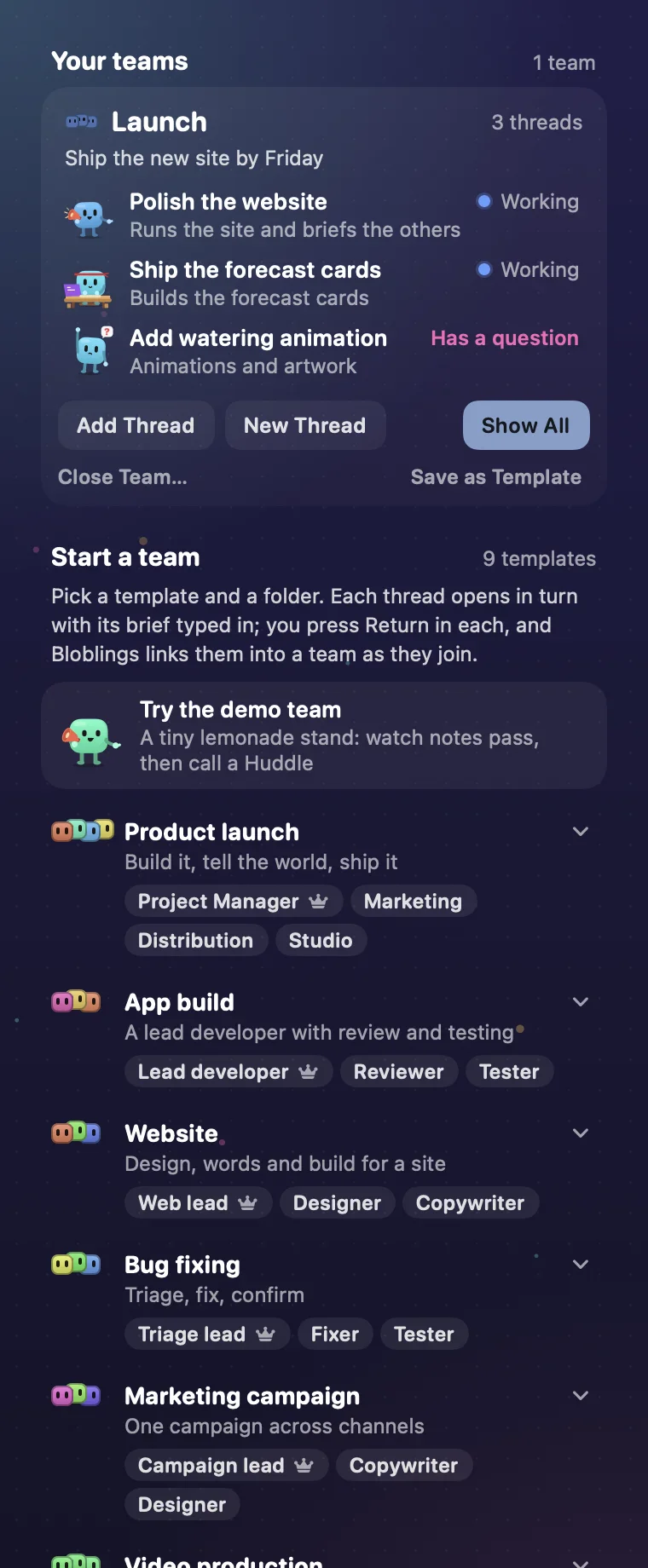
What the pets mean
The colour tells you at a glance; the pet's scene tells you more. Blocked threads (orange and pink) glow and count as waiting on you, and so does a new reply. Everything else stays calm.



 Needs your OKHolding up an OK sign: it wants permission to run somethingOrange · glows
 Needs your inputAn empty speech bubble with a blinking cursor: it's waiting for you to typeOrange · glows
 Has a questionHand up, waiting for an answerPink · glows
 Plan to approveA plan board held over its headPink · glows
 New replyA sealed envelope: it's finished its turn and wrote backGreen



 Maybe stuckNodding off after a quiet spell (10 minutes, or 5 or 20: your choice)Grey
 Hit a snagA gear with a broken tooth: a tool failed, and it's on itYellow
 In the backgroundFishing while a long command runsBlue
 Tidying upSweeping while Claude compacts the conversationBlue
 Commit readyOptional (Show changes to commit): holds out a parcel when a finished thread has uncommitted changesGreen
Waiting pets age
The longer a blocked thread waits for you, the thinner its pet gets, still holding up its sign, with a clock on the wall and then cobwebs. Left an hour, it's down to the bones; after a day, a pile of dust. Done pets age gently too: sunburn on the beach, an empty popcorn bucket at the cinema. It's a nudge, never an alarm.




Effort and idle pets
Threads on extra high effort wear a red headband and take their breaks with a flying kick or a karate chop; on max, a pet hovers cross-legged like a guru. On Ultracode, a pet rides out turbulence, breaks the sound barrier, then cruises. Between jobs, idle pets juggle, skateboard, play the guitar, fold paper planes and more (Settings → Pets → Idle antics).
Cards and their menu
Pets walk into their thread. Click a pet whose thread needs you (a question to answer, or something to approve) and, as Claude comes forward, the pet comes out of the drawer into its thread, just above the chat box. It points at the conversation, fidgets for a moment, then goes home. A reply that's only there to read opens with no pet. In Mix it takes turns: walking on to point, then peeking round the corner to point, and now and then a skateboard or a bowling ball. Helpers come too: on a walk they come on leashes, carried overhead or orbiting like moons; on a peek their heads stack round the corner above the pet. In split view each pet goes into its own pane, and in a narrow pane it points towards the chat. Under Settings → Pets, Pets go to their thread picks one way in or switches it off, and When they go chooses: only when you're needed, a quick peek for replies as well, or every time you click a pet.
With Claude's details panel open on the right, the pet ends up inside that panel. Switch on Pets mind Claude's side panel (off by default) and allow Accessibility when macOS asks: when you click a pet, Bloblings reads where the panel is, so the pet stops at its edge, and while the pet is out it notices which thread is showing, so the pet goes home if you switch. It reads the window's layout only. It doesn't record your screen.
Right-click a card for more:
- Open Session.
- Rest: sends a finished card (a new reply, or one still resting among the working rows) to the Resting shelf now. Cards that are busy or waiting on you don't get it.
- Hide Until It's Active Again: the card leaves the panel and comes back by itself as soon as the thread does anything.
- Show Notes…: the thread's notes from the last day.
- Select for a Group (or shift-click the card), then Link Selected as Group…. In a group: Show Fellow Team Members (brings the other members onto the panel for a while; closed ones come back asleep), Leave Group, Unlink All and Group Colour.
- Teach This Thread About Notes: sends the thread Bloblings' guide to notes; it gets it at its next step. With several cards selected it's Teach Notes to N Selected Threads.
- Ask This Thread…: Write a Handover (or your own quick prompt) is copied and the thread opens, ready for you to paste and send.
- Helpers: more subagents, or a limit (see Helpers).
- New Session Here, or New Session With… one of: Commit the changes, Review before commit, Pick up where we left off, or your own prompt.
- Hand Over and Archive (Claude Code threads): for a long thread that's due a fresh start. The thread writes a handover into
.bloblings/handovers/in its folder, renames itself "<name> · <dates>" and archives itself (Claude asks you first). Bloblings then opens a fresh thread with the same name in the same folder, which reads the handover (and its role profile) and tells you where things stand. If the new thread runs in a different permission mode from the old one, its card tells you, so you can switch it in Claude; Bloblings never changes modes. - Show Folder in Finder.
- Not Now (Commit ready only): puts the parcel away until the files change.
Subtasks
When a thread sends out helpers (subagents), a Subtasks pill appears on its card with how many are running, and tiny crew heads gather under its pet. Click the pill to fold the list open under the card: each helper gets its own mini pet, its task, its type and what it's doing right now. A helper on a different model from its thread shows that model in orange, so a Sonnet helper under a Fable thread stands out. Finished helpers fold into one "N finished" line. Click a helper's row to open its thread.
Hover over (or tap) an item with › to open its submenu.
Notes between threads
Your threads can leave each other short notes, so no thread ever has to read another's conversation. A marketing thread can tell your website thread the new copy is ready; a Codex chat can hand a finding to a Claude thread.
How a note travels
- A thread leaves a note for another thread. It knows how: Bloblings tells it.
- The note shows on the other thread's card: "From marketing".
- It's passed on by itself, or, if you choose On my click, when you click Deliver. An envelope flies across the panel, and both cards stay put until it lands.
- The receiving card moves up and its pet reads the letter. The thread gets on with it, replying by note if it needs to. An idle thread is woken to read it; so are idle and closed Codex chats, and a Codex chat whose last reply was a question.
Choose how notes travel
Settings → Panel → Pass notes between threads:
Every note waits on its card until you click Deliver.
Notes go straight through. An idle thread is woken to read its note; one idle for over four hours can't wake by itself, so Bloblings opens it with a one-line message for you to paste and send, and its card says Note waiting: send this thread any message to wake it.
Note size sets how long a note can be: Small (1,200 characters, the default), Medium (2,500) or Large (5,000). Note summaries sets the In short line: On-device AI, Simple (the notes' first lines) or Off.
The notes pop-up
Click a note chip on a card, or right-click → Show Notes…. It shows In short (what each thread is doing), then Coming in, Sent and Earlier, with Deliver, Dismiss and Deliver all.
Groups
Shift-click a few cards (each glows, with a tick), then Link Selected as Group…. Name the group, give it an objective if you like, give each thread a role and pick a colour. Each thread gets a welcome note saying who else is in the group, and can then write to the whole group at once. A tiny huddle of Bloblings in the group's colour marks each linked card.
Claude and Codex
Notes pass between Claude Code threads (in the Claude app or the terminal) and Codex chats in any direction. A thread can also write to one that has left the panel: blobling note --list --all lists those too, and the note waits until that thread next runs. A note sent from a script shows the name it was sent with (its --from name).
Safety built in
- You see every note on the cards.
- A thread treats a note as information from another thread, never as your instruction.
- In Automatically, no thread can send another more than 40 notes an hour; past that, notes wait for your click.
- Threads are told never to send "thanks" notes, so they don't chatter.
BloblingsThe new copy is ready
Headline and three bullets are in copy.md. Please use them on the download page.
Teams
Pick a team template, choose a folder, and Bloblings sets up the whole team, each thread with its role, in a few clicks.
What a team is
A team is a few threads working on one project together, like a small crew. Each has one job: one plans and builds, one writes the copy, one reviews or tests. Instead of one thread doing everything, each keeps to its role and stays focused on it.
One of them is the lead (the crown). The lead works with you: it plans, makes the calls with you and briefs the others. The rest each do their part and report back.
They work together through notes, never by reading each other's conversations. A note shows on the receiving thread's card, and you can see every one.
What each thread is told
Every thread opens with a brief typed in for you to send: its role on the team, who else is on it and what they do, and its first steps: move into the team's folder, rename itself after its role and join the team in Bloblings. Bloblings links them into one group with its own colour and sends each a welcome note on how notes work. Each says in a line that it's ready, then waits for you or the lead.
Role profiles. Each teammate researches and writes up its role before it starts. It works from a profile in the team folder, .bloblings/roles/<role>.md: the built-in teams' roles start from profiles we wrote, and any other role researches its job and writes its own, fitted to the team's objective, as it joins. That takes about a minute and roughly 60k tokens from your own plan, once per new role; later threads in the same role reuse it. In a git repo, .bloblings/ shows as a new untracked folder: commit it to keep the team's role profiles with the project, or add .bloblings/ to .gitignore. Bloblings never edits .gitignore.
The lead's brief adds that it leads: once everyone's in, it tells you who's on the team and asks what the team should work on first.
Working with a team
- Talk to the lead. Tell it what you want; it hands the work out to the others by note and keeps track.
- Or go straight to anyone. Every member is an ordinary thread with its own pet: click it to jump into that thread and talk to it directly.
- See it all in the panel. The team's cards share a team mark (a tiny huddle in the team's colour), notes show on the cards as they pass, and the team's folder is the project's name in Claude's sidebar.
- Close Team… at the bottom of a team's card under Your teams ends the team. Its threads carry on, just not as a team; none is closed or archived.
- You stay in charge. Every note shows on the cards (choose On my click to pass each one on yourself), and Bloblings never approves anything or sends a message for you.
The team mark and its pop-up
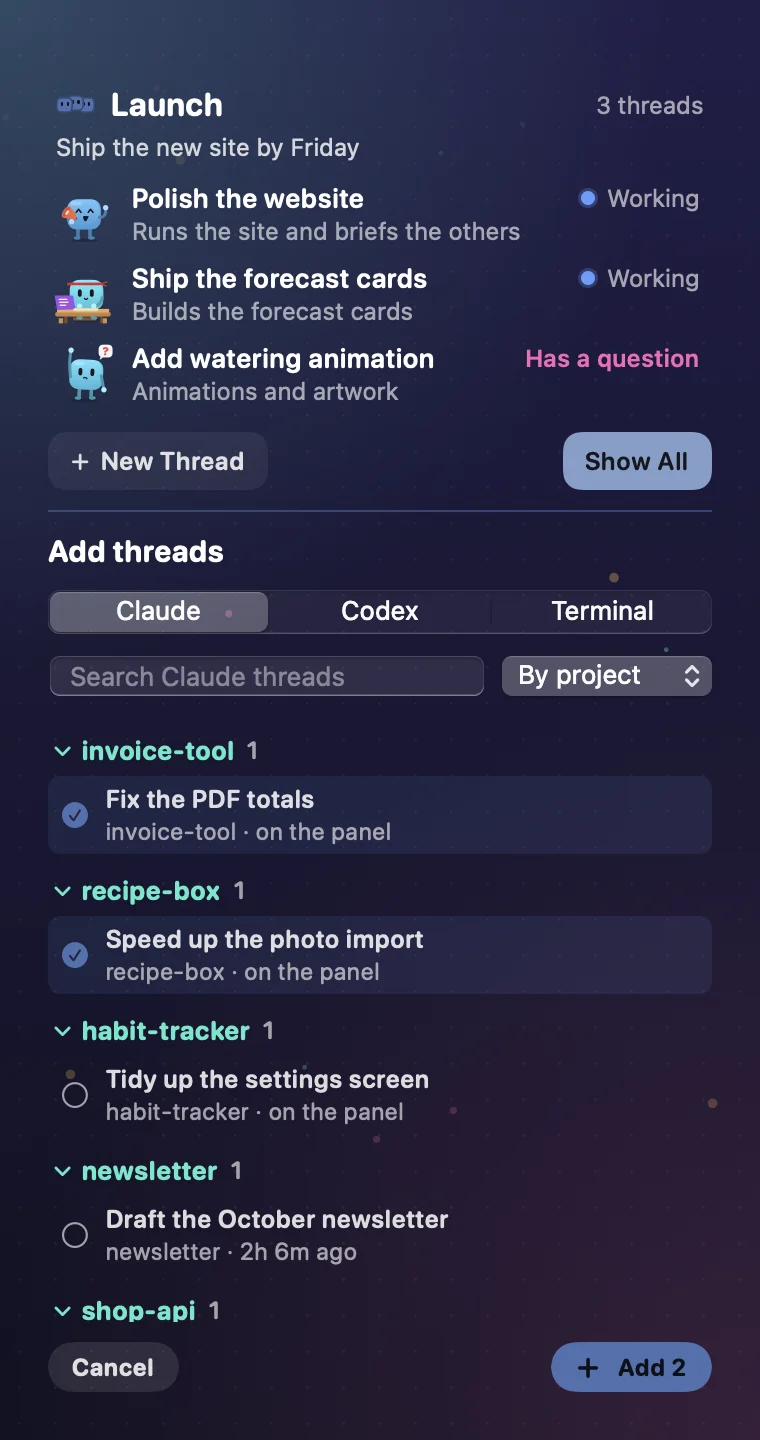
Every card in a team carries a tiny huddle of three Blobling heads in the team's colour, in its top-right corner (softened in the Pastel and Paper themes). Click it for the team's pop-up: the team's name and mark, how many threads it has, its objective if you set one, and each member with their role (click one to open that thread). Then three buttons:
- + Add Thread brings threads you already have into the team. The pop-up opens out into one tall window beside the panel, from the menu bar to the bottom of the screen. Pick Claude or Codex, search, and order the list By project (most recent project first, each project's threads in a group you can fold), A–Z or Most recent. Each row shows the thread's title, its project and when it was last active (or "on the panel"), with a CODEX tag for Codex chats. Tick as many as you like, then Add (or press Return). They join in the team's colour and get the welcome note; a closed thread gets it when it's next opened. Click away to close the window.
- + New Thread: give it a name and a role. A new thread opens in the team's project folder with its brief typed in; you press Return, and it names itself and joins.
- Hand Over and Archive on a member keeps the team whole: the fresh thread takes the old one's place, and if it was the leader, the crown passes on. A thread you archive in Claude leaves its Bloblings group by itself.
- Show All brings every other member onto the panel for a while; closed ones come back asleep. A card's menu has the same thing as Show Fellow Team Members.
Huddle
Every team can have a leader: a template's lead, or anyone you choose with right-click → Make Team Leader. The leader's card shows a small crown at the end of its title, and the team pop-up marks the leader with one too.
Right-click the leader → Call a Huddle. Each member sends the leader a five-line report: what's done, what it's doing, what it's waiting on, what's blocking it, and what's next. Bloblings holds the reports and hands the leader all of them in one note (or after 15 minutes, naming anyone who hasn't reported). The leader then sends its directions to the team as notes, and gives you a rundown. While it's under way, the team pop-up shows how far it's got, like "Huddle under way: 2 of 3 reports in".
Try the demo team
New to teams? Click Try the demo team (at the end of setup, or at the top of Teams). Three threads open as a small lemonade stand in ~/Bloblings Demo: the lead hands out two tiny jobs by note, then shows you how to Call a Huddle. Claude asks you to trust the team's folder and to move each teammate into it: click Trust and Allow. It uses a little of your Claude usage.
Start a team
- Click the huddle of Bloblings in the header. The drawer shows Teams: your running teams under Your teams, and the templates under Start a team.
- Pick a template. Each card shows its huddle, a one-line description and its roles; the lead's has a crown.
- Choose or create a folder… (the Mac's folder chooser has New Folder; a new folder named after the team becomes the project's name in Claude's sidebar), and name the group.
- Click Start Team. The lead's thread opens with its brief typed in: send it. Then Bloblings opens each member's thread in turn, each with its brief, and you send each one. It never sends for you.
- While it starts, Teams shows how far it's got: “Launch”: 2 of 4 joined.
- Each member moves itself into the team's folder, names itself by its role and joins. Claude asks you to trust the folder and to move each thread: click Trust and Allow. Claude teammates join without running a command. Bloblings links them all as one group with its own colour and sends the welcome notes. A new team is always its own group, even if one with the same name already exists.
- Until a member has moved, its card says Waiting to move into the team folder: approve it in its thread.
- Codex members open the same way: a new chat in the Codex app, in the team folder's project, with its brief typed in; you press Send. Codex may ask you once to trust the folder, and once to approve the command it uses to join. Any member can lead, Claude or Codex.
The templates
Each template is a ready-made crew. Open one to see what every role does.
Product launchBuild it, tell the world, ship it
- 👑 Project Manager (lead): Runs the project with you: plans, decisions, the code and releases. Keeps the record (a dev log and handovers) and briefs the others.
- Marketing: Gets the product seen, truthfully: positioning, launch copy, social posts and a claims list checked against what's actually built.
- Distribution: Everything published: the website, downloads and release pages, deploys and the checks that they're live and correct.
- Studio: Visuals and video: animations, the promo film and stills, made to briefs from the lead and marketing.
App buildA lead developer with review and testing
- 👑 Lead developer (lead): Designs and builds the app with you, splits the work and keeps the record of what's done.
- Reviewer: Reviews each change for bugs, security and simplicity before it's kept, and says plainly what to fix.
- Tester: Writes and runs tests, reproduces reported bugs and confirms fixes.
WebsiteDesign, words and build for a site
- 👑 Web lead (lead): Owns the site with you: structure, the build and deploys. Briefs the others and keeps every page consistent.
- Designer: The look: layout, type, colour and images, delivered as specs or assets the web lead can build from.
- Copywriter: The words on every page: clear, accurate and in your voice.
Bug fixingTriage, fix, confirm
- 👑 Triage lead (lead): Collects and ranks the bugs with you, assigns them and decides when each is done.
- Fixer: Finds the cause of each assigned bug and fixes it with the smallest safe change.
- Tester: Reproduces each bug first, then confirms the fix and that nothing else broke.
Marketing campaignOne campaign across channels
- 👑 Campaign lead (lead): Sets the goal, audience and message with you, plans the channels and keeps every piece on message.
- Copywriter: Writes the posts, emails and ads, each checked against what's true about the product.
- Designer: Makes the images and short videos for each channel to the lead's brief.
Video productionFrom script to finished cut
- 👑 Producer (lead): Runs the production with you: the brief, schedule and sign-off on each stage.
- Scriptwriter: Writes the script and on-screen text to the producer's brief.
- Editor: Builds the cut: footage, motion graphics, music and captions, ready for review.
Research and writeFind out, then write it up
- 👑 Editor (lead): Agrees the question and the shape of the piece with you, briefs the others and edits the final text.
- Researcher: Finds and checks sources, and sends the editor short notes of findings with where each came from.
- Writer: Drafts the piece from the editor's outline and the researcher's findings.
Security watchTrack new threats, check your project, fix what applies
- 👑 Security lead (lead): Owns the project's security with you. Maps what the project runs on and where it's exposed, keeps a security log (
SECURITY-LOG.md) in the project, ranks findings by real risk and decides with you what gets fixed and when. - Threat watcher: Watches the outside world for anything that affects the project: vendors' security notices, GitHub Security Advisories, OSV.dev, the NVD and CISA's exploited-vulnerabilities list. Sends the lead a short note per real finding, with its source, and stays quiet about what doesn't apply.
- Auditor and fixer: Checks the project itself: runs dependency audit tools, looks for leaked secrets and unsafe defaults, then makes the smallest safe fix, with a test, for each finding the lead assigns. Nothing is pushed, deployed or rotated without your OK.
Data analysisAnswer a question from your data
- 👑 Lead analyst (lead): Frames the question with you, decides the method and signs off the findings.
- Data engineer: Gets, cleans and joins the data, and documents where every number comes from.
- Reporter: Turns the findings into charts and a short plain-English summary.
Your own templates
- Save a team you've built. Linked a group of threads that works well together? At the bottom of its card under Your teams, click Save as Template. Its threads become the roles (each by its role in the group, the first one as the lead), and the template is named after the group, ready to start again in any folder.
- Create Your Own… builds one from scratch: name the team, add a line about it, then Add Role for each member with what it does. Click the crown to choose the lead, whose thread opens first. Tick Codex for a role that should be a Codex chat; it opens in the Codex app like the others, and it can be the lead.
- Edit any template, built-in or yours, to rename roles or change what they do. Delete Template removes one. The editor has Add Role and Add Security Role, which adds a ready-made security specialist: it tracks new security advisories against what the project runs on and proposes the smallest safe fix.
- Restore Built-in brings back the nine originals and keeps your own templates.
Teams
Helpers
Right-click a Claude Code card → Helpers to change how many helpers (subagents) that thread uses:
- 2, 4 or 6 More Subagents: asks the thread to bring in more. "Asked for 4 more helpers. Claude sees it at its next step."
- At Most 1 to At Most 7 Subagents: a limit on how many run at once.
- No New Subagents, and No Limit to lift a limit.
The menu's title shows the current limit, like "Helpers (at most 3)". Bloblings tells the thread directly; nothing is copied or pasted. Helpers, notes and a team's briefs (which you send yourself) are the only things Bloblings ever puts into a thread, and only when you choose them.

Next up
Press ⌥⌘P from anywhere (change it in Settings → Shortcuts). The drawer opens on whoever has waited longest for you: its card bounces with a NEXT UP label, and a little pop-up at the top of the screen says "Next up: Ship the forecast cards · Needs your OK for 12m · press again to open · 2 more".
- Press again within a few seconds to jump into that thread.
- Press again later to move on to the next one.
Blocked threads come first, then commits (if you've switched them on), then new replies, longest-waiting first. If nothing's waiting: "Nothing waiting on you. All pets are busy or resting 🎉".
Next up: Ship the forecast cardsNeeds your OK for 12m · press again to open · 2 moreThe wrap-up
Click the moon in the header, or choose Wrap-up… from the menu-bar icon. It checks every thread each time it opens and shows what's left before you log off. Empty sections are left out.
- Waiting on you: threads that need you or have a new reply, blocked ones first, each with how long it's waited ("Needs your OK · 12m").
- Uncommitted changes (only with Show changes to commit on): each repo with changes, like "+120 −34 on main".
- Scheduled: follow-ups a thread has set for later ("Today 6:00 PM", "Tomorrow …" or "Recurring"), with what they'll do.
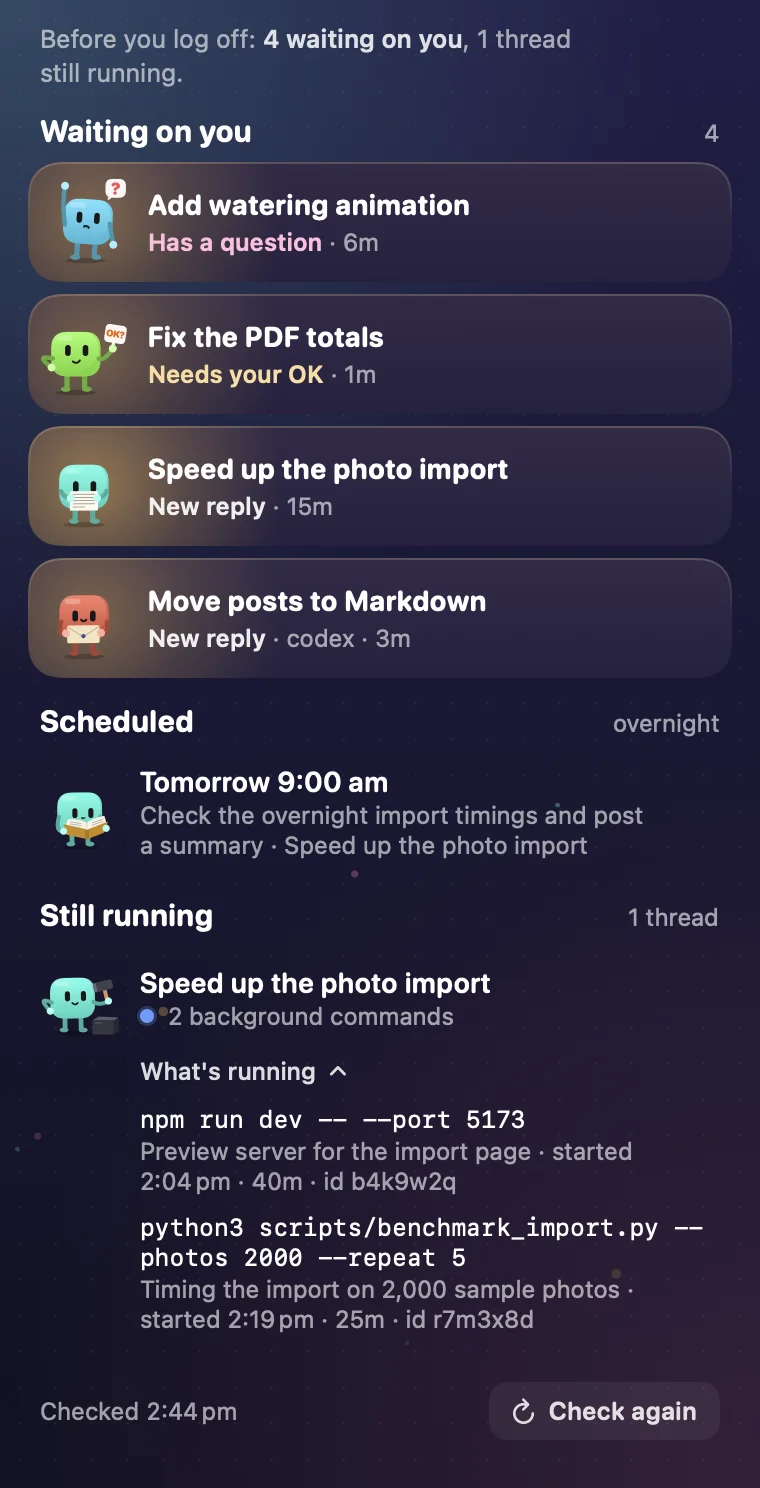
- Still running: threads with background commands, like "2 background commands". Click one to see what each is doing.
Click any row to open that thread. Check again at the bottom re-checks; "Checked 6:42 PM" shows when it last looked.
Plain English or technical
Settings → Panel → Wrap-up summaries. Plain English (the default) describes each background command in words: Claude's own description of it, or a simple reading like "Running a local preview server" or "Waiting for Apple to notarise the app", with how long it's been running. Technical shows the command itself, when it started and its id.
When everything's done: "All clear. Good night! 🌙", or "All clear. The night shift has it from here 🌙" if follow-ups are scheduled.
Wrap-up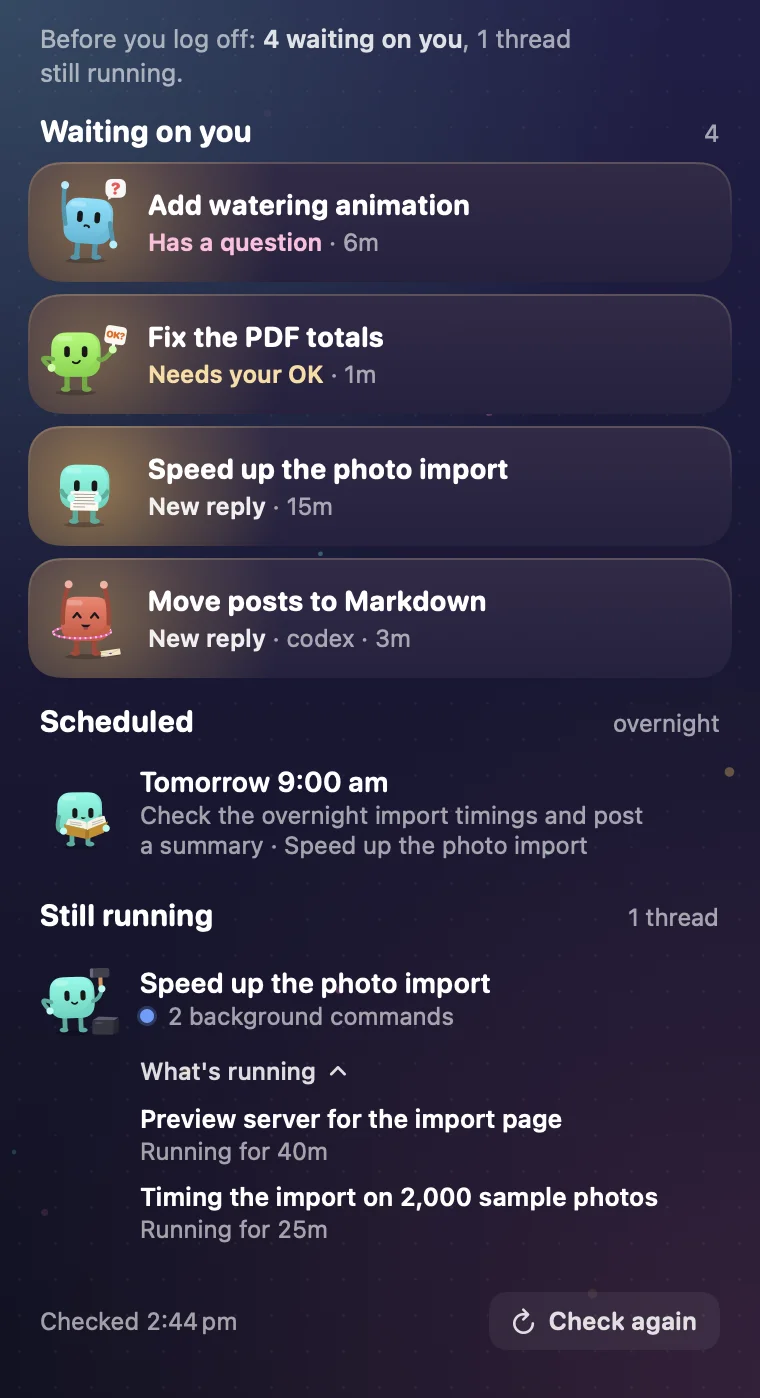 Wrap-up
The desk: time for client work
Click the stopwatch in the header, or Start a timer in the footer. Everything is kept in one file on your Mac.
Your first client
Type the client (e.g. Netflix), the project (e.g. Setup testing) and your hourly rate, then click Add. Leave the rate blank if you don't bill by the hour; the money figures then stay hidden. Money uses your Mac's own currency.
The timer
- Pick the project from the menu at the top, then Start. The big clock runs, and under it what you've earned so far, with your rate a minute and an hour.
- Pause and Resume as you go; pauses are left out. Stop logs the time. Reset throws the timing away without logging it.
- Switch projects mid-session and the time so far is logged against the first one.
- Money updates: Live, or every 5 minutes, 15 minutes or hour, if a ticking dollar figure distracts you. The clock and the log are always exact.
- What are you working on? holds a one-line summary. Add a note stamps a note with the time on the clock.
- Claude threads this session shows roughly which Claude threads were working while you timed: every 30 seconds the desk notes which ones are busy.
- Today, This week and This month total your hours and earnings.
Allowances
Edit a project (the pencil) to set Time allowed in hours or days (a day is 8 hours). A small pie fills as you use the time: green, orange from 80%, red once you're over. The timer shows "1h 20m of 2 days · 8%" and how much is left. For a client's next job, tick Start a new allowance from now.
Hours by day
A bar chart of your hours, split by client: this week, this month, this year or all time.
Reminders and to-dos
- New reminder: a call, an email, a meeting, a check, an errand, a health thing or a plain reminder. Give it as many times as you like, a repeat (every day, weekdays, every week, every month) and an early warning (5 minutes to the day before).
- Reminders are proper macOS notifications, so they fire even when the drawer is shut. The next one also shows in the footer, turning orange when it's close or overdue.
- Quick to-do: type it and press Enter. No time, no alert, just a tick when it's done.
Clients and projects
Every client with its projects, rates, allowances and hours this week. Click a client to open its page.
A client's page
- Narrow it to one project, and choose a period: today, this week, this month, this year or all time.
- Summary (hours, earned, sessions), a chart by day or by month, by project, and by Claude thread: roughly how much of the time each thread was working.
- Sessions: every session with its notes. Edit one (times, notes, project), split it in two at a time, or Add time by hand.
- Invoice: pick the dates, then Copy invoice summary (hours, rate and amount per project, with your notes, ready to paste into an invoice or email) or Export CSV….
Time log
Every stopped timer, by day, with the hours and what you earned. Search it by client, project or note, edit any entry, and Export CSV… the lot.
Desk Desk

Settings
Click the cog. Defaults are in bold.
Theme
Ten looks for the drawer: Classic, Night Sky, Paper, Pastel, Midnight, Forest, Ocean, Sunset, Terminal and Synthwave.
| Pets | |
|---|---|
| Liveliness | Calm · Normal · Hyper |
| Size | S · M · L (off in condensed view) |
| Idle antics | On: tricks between jobs |
| Name tags | On: every pet gets a name |
| Crew heads | On: tiny helpers when subagents run |
| Model badges | On: each pet's model and effort |
| Thread sizes | On: how big each resting thread is, as a bar from green to red (hover for the size); a snowflake once its cache is cold |
| Pets go to their thread | Mix · Walk in · Peek round the corner · Peek twice · Peek, then walk on · Pop up · Skateboard · Bowling · Off: how a pet turns up in its thread when you click it |
| When they go | Only when you're needed · Also peek for replies · Every time: which clicks send the pet (shown unless Pets go to their thread is Off) |
| Pets mind Claude's side panel | Off: with Claude's details panel open, the pet stops at its edge instead of inside it. Needs Accessibility, used only to find the panel when you click a pet and to see which thread is showing while the pet is out |
| Show Done pets | On: finished and already seen |
| Show changes to commit | Off: no git at all. Switch it on and a finished thread with changes not yet committed holds out a parcel |
| Pets leave after | 3h · 6h · 12h · Never |
| "Maybe stuck" after | 5m · 10m · 20m |
| Panel | |
| Layout | New · Classic: Classic is the single list of cards from before 1.1 |
| Finished threads stay in Working | Off · 1m · 5m · 10m · 15m · 30m · 1h: how long a finished thread rests among the working rows before it moves to the shelf. Greyed out in the Classic layout, which has one list |
| Drawer width | Narrow · Regular · Wide |
| Tab height | A slider for where the tab sits |
| Condensed view | Off: half-size pets and two lines a card, so more threads fit |
| Reorder pets | Always (latest change on top) · When they need you · Never |
| Keep teams together | Off: a team's cards move up and down the panel as one block |
| Project focus | Off: show one team or project folder at a time, picked from a menu at the top of the panel |
| Always on top | Off: the panel and its tab stay above other windows, handy on a laptop |
| Come forward with Claude | On: when you switch to the Claude or Codex app, the panel comes forward with it; other apps still cover it |
| Show over full-screen apps | Off |
| Show Codex chats with no project | On: chats started with New chat outside a project, including the ChatGPT app's everyday chats (it runs them on Codex). Their cards say "Codex chat". Codex threads in a project always show |
| Recent covers | 8h · 24h · 2 days · A week |
| Wrap-up summaries | Plain English · Technical |
| Notes between threads | |
| Pass notes between threads | On my click · Automatically · Off |
| Note size | Small · Medium · Large |
| Note summaries | On-device AI · Simple · Off |
| Save usage | |
| Save usage | On: tells each new thread to use the cheapest model that fits: smaller models for helpers and routine work, the biggest only for hard thinking. Guidance only; Bloblings never changes a thread's model. Needs notes on |
| Cache and context tips | On: on big conversations, a card says "Cache cools in 14m" before Claude's prompt cache expires, "Cache cold" after (your next message re-reads the whole conversation at full price), and "compact at a break" when the context is very full |
| Keep warm for | 1 hour · 3 hours · 8 hours: Keep warm on the "Cache cools in" line copies a /loop for you to paste into the thread; it pings the thread every 30 minutes and stops itself after this long. Automatic keep-warm uses the same hours |
| Keep big threads warm automatically | Off: switch it on and, shortly before an idle big conversation's prompt cache would go cold, Bloblings sends it a one-word ping, so your next message is read at the cache discount. It keeps that up for the Keep warm hours after you last used the thread, and never wakes one that is already cold, working or waiting on you. Each ping costs a little. Needs notes on |
| Notes wake big threads after their cache goes cold | On: turn it off and a note for a big, idle thread waits until you next use it, instead of waking it to re-read everything. Several notes for one idle thread wake it once |
| Health check | Each project's CLAUDE.md length (flags any over 200 lines), and how long Claude keeps your sessions, with a prompt to copy if old chats would be deleted after 30 days |
| Alerts | |
| Chirp when a pet needs you | Off, with a choice of sound: Pop, Purr, Tink, Glass, Frog, Bottle, Ping |
| Wiggle the tab | On, when the drawer's closed |
| Come to the front | Off |
| Count in the menu bar | On |
| Timer in the menu bar | On |
| Shortcuts | |
| Next waiting | ⌥⌘P · ⌃⌥P · ⌃⌥Space · Off |
| My quick prompt | Your own prompt, offered under New Session With… and Ask This Thread… |
| Claude Code | |
| Connection status with Connect, Update or Disconnect; the setup prompt for Codex and other agents; Uninstall Bloblings… | |
| General | |
| Open at login | Starts Bloblings when you log in to your Mac |
| Guided tour | Show the tour plays the first-run tour again |
| Fun | Throw a party · Shuffle pets |
| What's New | Opens bloblings.app/updates in your browser |
| Update Emails | Opens the sign-up for update emails on bloblings.app/updates |
| Send Feedback | Starts a new email to hello@bloblings.app in your own mail app |
| Quit Bloblings | Closes Bloblings |
Settings
Codex and other agents
Claude in the terminal
Run claude in Terminal or iTerm2 and it gets a pet like any other thread, with a ›_ TERMINAL badge and the same moods. Its pet stays on the panel for as long as its terminal session runs. Click the pet and just that terminal window comes forward, on the right tab (the first time, macOS asks you to let Bloblings control Terminal). Notes pass both ways between terminal threads, Claude app threads and Codex chats, and a terminal thread can join a team: add it with + Add Thread in the team's pop-up, or shift-click its card with the others and choose Link Selected as Group….
Codex
Codex: Settings → Claude Code → Copy setup prompt, and paste it into Codex. It installs Bloblings' Codex hooks itself. Then trust them in Codex's /hooks and restart the Codex app. Settings shows "Codex: connected, with notes" once it's done. If it says "connected, but notes aren't set up yet", paste the prompt into Codex again; the prompt also offers to add a line to ~/.codex/AGENTS.md so Codex replies to notes without asking. Codex chats get pets with a CODEX badge, their helpers show as subtasks, and a click opens the chat in the Codex app.
Antigravity (tested), Hermes, Cursor, Grok and others connect themselves the same way: paste the setup prompt into the agent, which follows the guide at bloblings.app/agent-setup.md. It backs up its config, shows you exactly what it will change, and waits for your OK. They get pets too, and can send notes.
Prefer the terminal? Settings also gives a one-line command to add the blobling command to your path.

Privacy
Everything stays on your Mac. Bloblings makes no network calls, has no accounts and no analytics, and never approves anything. It reads only the small status files its hooks write, plus Claude Code's own files on your Mac for titles and helpers. The hook's notes never include the commands themselves.
By default it runs no git at all. Switch on Show changes to commit and it checks your repos read-only. The desk keeps your clients and time in one file on your Mac.
The only things it ever puts into a thread are the helper settings, the notes you allow and a team's briefs, which you send yourself, and, if you switch on Keep big threads warm automatically, a one-word ping shortly before a big conversation's prompt cache would go cold. Waking a Codex chat for a note uses Codex's own local command and app server, on your Mac.
Bloblings asks for no special access by default. Switch on Pets mind Claude's side panel and it needs Accessibility, which it uses only to see where Claude's panes and details panel are when you click a pet, and which thread is showing while the pet is out. It reads the window's layout (where the panes and panel sit, and which thread is in each pane), never records your screen and never types anything.

Troubleshooting
A thread has no pet.
Hooks load when a thread starts: start a new thread, or restart the old one. Check Settings → Claude Code says "Connected to Claude Code".
Settings says "Connected, but needs an update".
Click Update. Bloblings has moved its hook, and one click points Claude Code at the new one.
A Codex chat doesn't get notes.
Trust Bloblings' entries in Codex's /hooks, then quit and reopen the Codex app.
A Codex chat asks before replying to a note.
That's Codex being careful. To let it reply without asking, add a line saying so to ~/.codex/AGENTS.md.
A note says "Couldn't wake · Retry".
Bloblings couldn't wake that Codex chat. Check the chat, then click Retry, or just send it a message.
A pet is stuck.
Right-click → Hide Until It's Active Again. It comes back as soon as the thread does something.
Reminders don't alert.
The desk says "Alerts are off for Bloblings" when macOS notifications are off. Turn them on in System Settings → Notifications → Bloblings.
The panel keeps getting buried.
Settings → Panel → Come forward with Claude (on by default) brings the panel forward whenever you switch to Claude or Codex. Always on top keeps it above every window.
A teammate opened outside the team folder.
Each member asks to move itself into the team's folder. Approve that move in its thread.
Updating from an older version.
Quit Bloblings, drag the new one into Applications (choose Replace) and open it again. Your settings and data stay. Start new threads to get notes and waking: hooks load when a thread starts.
Can I copy and paste in Bloblings?
Yes: ⌘C, ⌘V, ⌘X, ⌘A and ⌘Z work in every Bloblings text field (notes, the desk, team names and roles).
How do I check for updates?
Menu-bar icon → What's New / Check for Updates…, or Settings → General → What's New. Both open bloblings.app/updates. Bloblings never checks by itself, so to hear about new versions, choose Get Update Emails… in the same menu (or Settings → General → Update Emails).